Source : Internet

Turning off one Windows setting made my 5-year-old PC feel new


He joined MUO as a full-time writer in 2022, where he covers how-tos, explainers, and tech guides focused on Android, entertainment, and the internet.
Digvijay has previously contributed to several reputable publications, including Alphr, GuidingTech, TheWindowsClub, and MakeTechEasier.
Outside of writing, he enjoys traveling and learning about different cultures, as he believes new experiences spark creativity.

I finally disabled these Windows services and my PC is happier for it
Your PC might be secretly working harder than you are, and not always in ways that benefit you.
The setting Windows never told you about
SysMain, the silent performance killer
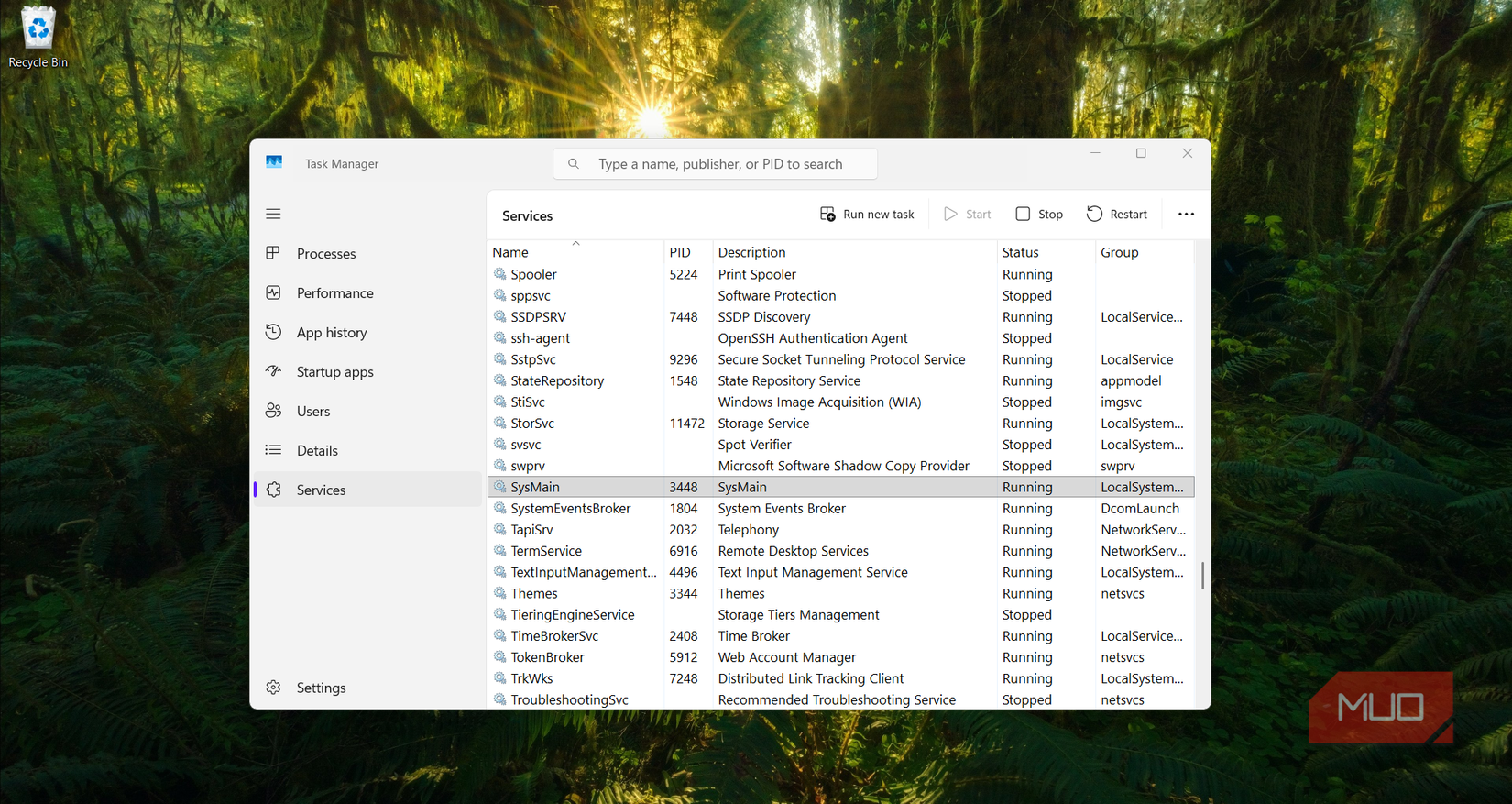
SysMain was designed for a very different era of hardware. When Superfetch launched with Vista back in 2007, most PCs had one or two gigs of RAM and slow-spinning hard drives. Loading an app meant waiting for the hard drive to physically locate and read the data, which took time. Superfetch solved this by watching which apps you opened the most and preloading them into RAM while your PC was idle.
That way, when you clicked on something, it was already in memory and opened right away. The problem is that the same service is still running the same way on hardware with completely different limitations. On a PC with 4GB of RAM, SysMain fills a large chunk of your available memory with apps it thinks you might open. That leaves less room for the apps you're actually running, and when your RAM runs out, Windows starts using your hard drive as overflow, which it calls the page file.
One tweak inside Windows Services
Disabling SysMain and what changed after
Now that I knew what was going on, I wanted to see what would happen if I turned it off. You can confirm it's an issue on your PC by opening Task Manager and checking whether Service Host: SysMain is using a lot of disk space in the Processes tab. To disable it, open the Services app and scroll down to SysMain. Double-click on it, change the Startup type to Disabled, and stop the service.
The bigger change was on startup. My PC used to take a few minutes after Windows loaded before I could actually do anything. The desktop would appear, but the hard drive would thrash at 100% for another two or three minutes while SysMain preloaded apps into memory. After I disabled it, the PC was usable almost as soon as Windows finished loading. Disk activity in Task Manager stayed normal the whole time.
Does your PC actually need it?
Not every PC reacts the same way
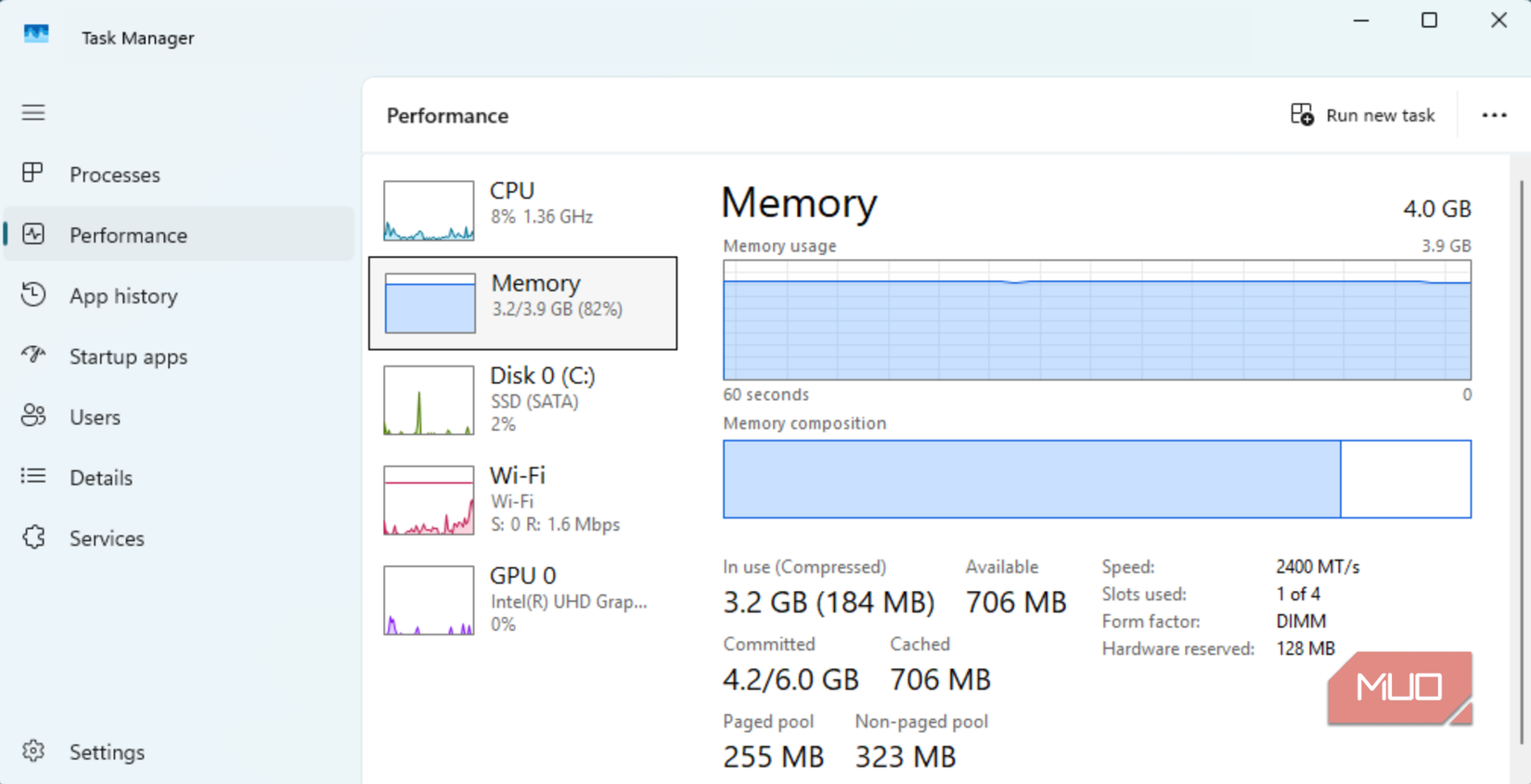
Whether you'll see the same results comes down to two things: what kind of storage your PC has and how much RAM. If you're running a hard drive with limited RAM, SysMain can work against you. The same disk thrashing and high memory usage I described earlier hits hardest on this kind of setup. All that constant disk activity adds unnecessary strain on a drive that's already aging.
On a PC with an SSD, you probably won't run into the same problem. SSDs load apps so quickly that SysMain's preloading doesn't really add anything. The constant read and write activity doesn't slow them down or wear them out the way it does with a spinning drive. With 8 gigs of RAM or more, SysMain has room to do its job without crowding out what you're actually using. You could leave it on and not notice a difference.
Check what else is running
SysMain is just one of many services Windows runs in the background by default. Others, like Windows Search indexing and Delivery Optimization, can place additional load on older hardware in the same way. If you've never opened the Services app before, it's worth scrolling through to see what else is running on your PC.

- OS
- Windows
- Minimum CPU Specs
- 1Ghz/2 Cores
- Minimum RAM Specs
- 4GB RAM
- Software Version
- 24H2
Windows 11 is Microsoft's latest operating system featuring a centered Start menu, Snap Layouts, virtual desktops, enhanced security with TPM 2.0, and deeper integration with Microsoft Teams and AI-powered Copilot.

Better still, disable indexing on all drives. Indexing is a brain-dead Microsoft approach, unless you need to search for text within a DLL. The whole drive gets indexed, generating a lot of disk activity whenever a file is changed and saved. Indexing wears out SSDs faster, too.
How?
Walter Log files.
Every time certain events happen, log files get created or updated. This means the log files need to be re-indexed, and the results re-written to your drive.
Over weeks and months, that extra writing impacts your SSD.
Walter My previous comment with a link got deleted. Hey, search for it with Google or Bing: "Disable indexing of a drive Windows".
Now if you're ready for the next step: Find out which motherboard your pc uses, see what the maximum cpu it can handle. Visit Ebay and see if you can find the max cpu for your motherboard. You can get "pulls" (recycled cpus) for dirt cheap. Also buy some thermal paste. Replace your lower horsepower CPU. Is your box maxxed out in RAM? if not do that too. Older PCs were made as upgradeable, and most commercially mad PCs were set up with midrange components.

I think I really need this - but my computer is so old it still runs windows 10
Am I going to break anything if I try this? The very slow start up and dragging situation you describe is my machine to a T, You make it sound safe and reversible, but I'm from the era of punched cards, when one missing hole could blow a week's work - tweaking things makes me nervous
Disabling Sysmain in Windows 10 is safe. It is not a core component or a required service of Windows 10 or 11.
W Thank you - I have done it, and am waiting to understand how the computer has changed over a few days.
Question -- are you running an HDD, or an SSD?
"That leaves less room for the apps you're actually running, and when your RAM runs out, Windows starts using your hard drive as overflow, which it calls the page file."
That is simply incorrect. If that RAM is requested for something you are using then it will be paged out, and since it's already code that is backed on store, then it will just be dropped.
This. I wonder of the author similarly believes disabling the file cache will also free up memory and improve performance...
I disabled it from starting many moons ago.
I "turned off" Windows completely and all my computers work better and much faster.
I shun Linux completely and I get better and faster performance in what I want to do.

I greatly appreciate this information, because now that I did this myself it is so much faster